
In SQL Server, a page is the fundamental unit of data storage, and the data in MDF and NDF files is logically divided into 8 KB pages. When the server reads or writes data, it performs built-in page validation checks.
These include verifying the page header, matching the stored page ID, and performing checksum or torn-page detection. If any of these validation checks fail, SQL Server raises the error 824.
In this article, we will discuss the error 824 in detail, possible causes behind it, solutions to fix it, and methods to recover corrupt MDF files.
What is SQL Server Error 824?
SQL Server Error 824 is a Severity Level 24 logical consistency-based I/O error that indicates potential database corruption.
This error occurs when Windows reports that the page in the database is successfully read from the disk, but the SQL Server engine detects an inconsistency in the page during the internal integrity checks. It can occur due to checksum failure, torn pages, bad page IDs, short transfer, stale read, or page audit failure.
The error is recorded in both the Windows Application Event Log and the SQL Server Error Log. The complete error message appears as follows:
2022-11-02 15:46:42.90 spid51 Error: 824, Severity: 24, State: 2.
2022-11-02 15:46:42.90 spid51 SQL Server detected a logical consistency-based I/O error: incorrect pageid (expected 1:43686; actual 0:0). It occurred during a read of page (1:43686) in database ID 23 at offset 0x0000001554c000 in file
‘H:\MSSQL16.MSSQLSERVER\MSSQL\DATA\my_db.mdf’. Additional messages in the SQL Server error log or operating system error log may provide more detail. This is a severe error condition that threatens database integrity and must be corrected immediately.
Complete a full database consistency check (DBCC CHECKDB). This error can be caused by many factors; for more information, see https://go.microsoft.com/fwlink/?linkid=2252374.
While the error 824 is just a warning sign of existing page damage, leaving it unresolved lets active disk issues corrupt more pages, forces SQL Server to mark the database as SUSPECT.
While the error 824 is just a warning sign of existing page damage, leaving it unresolved lets active disk issues corrupt more pages, forces SQL Server to mark the database as SUSPECT.
SQL Server Error 824: Common Causes
This logical consistency error in SQL Server indicates bad page ID, stale read failure, or torn page. It can occur due to one of the following reasons:
File System Inconsistencies
If the file system itself gets corrupted or damaged, this can affect how the database files (.mdf or .ndf) are accessed and the data is read/write on the disk. When SQL Server requests a specific page from the corrupt file system, it may return inconsistent page data, causing the error 824.
Sudden Power Failure
If your server crashes due to a sudden power failure while it is writing a page to disk, only a partial page may get written on the storage device. When the server is restarted, it reads that half-written block and the page header mismatches the end of the page, resulting in Torn Page error.
Corrupted Database Pages
If the page header in an MDF or NDF file becomes damaged for any reason, SQL Server rejects the page during internal validation checks, leading to the error 824.
Interfering Filter Drivers
Third-party filter drivers can interfere with disk I/O operations by intercepting file access requests. If these drivers are faulty or incompatible with the SQL Server, they may lead to database I/O inconsistencies.
How to Identify SQL Server Error 824?
You can use the following methods to identify this error.
Check the suspect_pages Table
Microsoft SQL Server records all the suspected pages in suspect_pages table, located in the msdb database. This table automatically tracks corrupt pages reported by SQL queries (up to a maximum of 1,000 rows). You can execute the following command to check for damaged pages and to see if other pages in the same or different databases are affected:
SELECT * FROM msdb..suspect_pages
WHERE (event_type = 1 OR event_type = 2 OR event_type = 3);
Run DBCC CHECKDB Command
Execute this command on all databases sharing the same disk volume to identify any underlying database consistency issues. It will return the 824 error along with the description.
DBCC CHECKDB ('john12');Check SQL Server Error Logs
SQL Server automatically logs detailed information every time the error 824 occurs, including the exact page ID, file path, and failure type. You can open SQL Server Management Studio (SSMS), expand Management > SQL Server Logs, and view the Current log.
Check Windows Event Logs
The Error 824 is an I/O alert. Windows record it in the system logs along with disk warnings and errors. You can open Event Viewer on your system to check for this error.
- In the Event Viewer window, go to Windows Logs > Application.
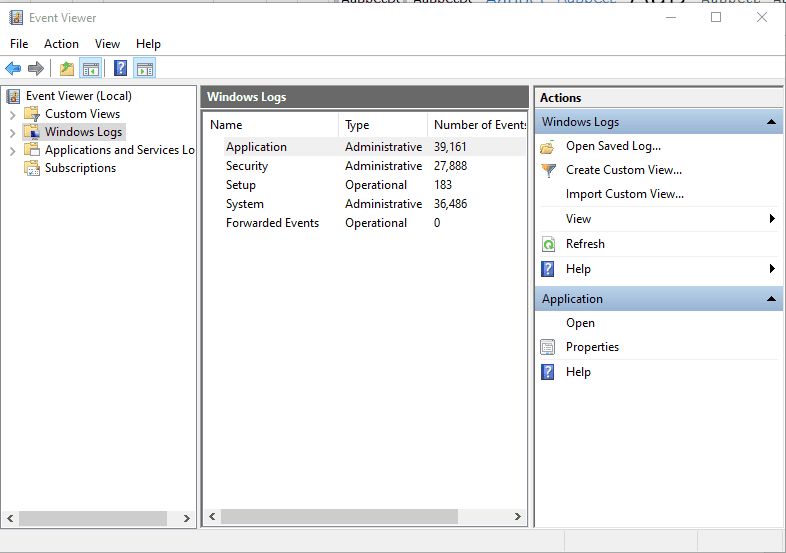
- In Application section, from MSSQLSERVER, search for Event ID 824.
How to Fix SQL Server Error 824?
Once you’ve confirmed that the error 824 occurred due to page corruption in the database, check and enable PAGE_VERIFY CHECKSUM. Doing this lets your SQL Server immediately detects any future page corruption. To check its status, run the following command:
SELECT * FROM sys.databases
WHERE page_verify_option_desc != 'CHECKSUM';
To enable it, execute the command below:
ALTER DATABASE [database-name] SET PAGE_VERIFY CHECKSUM;
Next, follow the methods below to repair or recover the database:
Note: We’re performing these methods on the database named John12 and its backup file named John12.bak.
Method 1: Run DBCC CHECKDB Command
You can run the DBCC CHECKDB command to repair corrupt pages in the database. It fixes structural inconsistencies within indexes and data pages. It can also help you restore allocation pages, including allocation maps (such as Page Free Space, Global Allocation Map, and Shared Global Allocation Map).
This can sometimes resolve logical inconsistency errors, like the error 824. Before running this command, it is to be noted that it may deallocate pages or a series of pages during the repair, resulting in data loss.
To use this command to repair pages in SQL database recovery, follow these steps:
- First, you need to set the database in single-user mode. For this, use the following command:
ALTER DATABASE John12 SET SINGLE_USER
Then, execute the below command with the REPAIR_ALLOW_DATA_LOSS option to repair the database:
DBCC CHECKDB (N'John12', REPAIR_ALLOW_DATA_LOSS) WITH ALL_ERRORMSGS, NO_INFOMSGS;
GO
Now, reset the database to multi-user mode by using the below command:
ALTER DATABASE John12 SET MULTI_USER
Note: The DBCC CHECKDB command may not work, if the database Boot Page (Page 9) or File Header (Page 0) is damaged, or if you cannot open the database.
Method 2: Restore Database from Backup
To maintain integrity while restoring corrupt pages in database, you can restore the database from backup (if it is available). Before this, first ensure that your backup file is free from corruption. For this, you can run the VERIFYONLY command:
RESTORE VERIFYONLY
FROM DISK = N'D:\BackupSQL\John12_Full.bak';
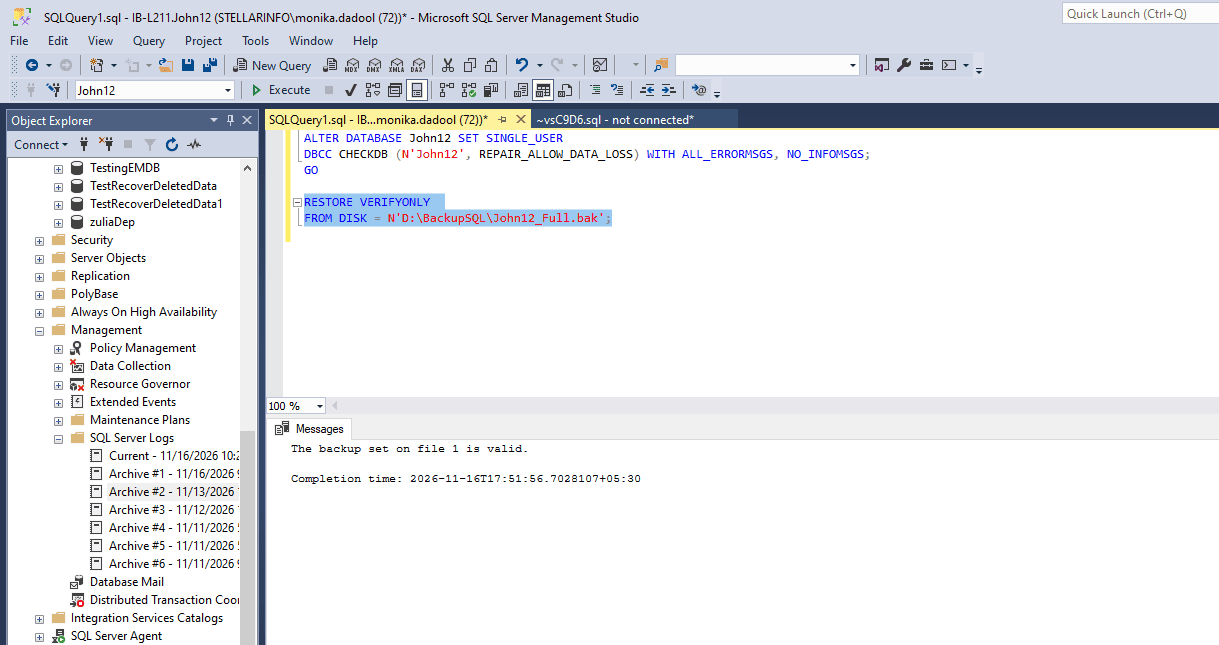
If it shows the backup set on file 1 is valid, it means the file is readable. You can restore it by using the following command:
RESTORE DATABASE [John12]
FROM DISK = N'D:\BackupSQL\John12_Full.bak'
WITH REPLACE, STATS = 10;
GO
Note: The WITH REPLACE option forces SQL Server to overwrite the existing John12 database and its files, even if the database name differs or active transactions have not been backed up.
While restoring backup file, you may encounter the file-in use error.
Msg 3102, Level 16, State 1, Line 33
RESTORE cannot process database 'John12' because it is in use by this session. It is recommended that the master database be used when performing this operation.
Msg 3013, Level 16, State 1, Line 33
RESTORE DATABASE is terminating abnormally.
To prevent such errors, make sure your backup file (John12_Full.bak) is not open elsewhere. If it is, close any active SSMS connections to the database and take the database OFFLINE, instead of using SINGLE_USER mode.
When restoring a full backup, a differential backup, and a transaction log backup to a specific point in time, make sure you follow the correct sequence and use the WITH REPLACE option properly.
Method 3: Perform Page Level Restore
If the 824 error message specifies damaged pages, you can also perform Page Restore operation. To do so, use the below T-SQL command:
Note: You must know the File ID where the page is located and Page ID of the corrupted page.
RESTORE DATABASE <database_name>
PAGE = '<file: page> [ ,... n ] ' [ ,... n ]
FROM <backup_device> [ ,... n ]
WITH NORECOVERY
Alternatively, you can use the SSMS to restore pages in the SQL database.
Although this is the fastest targeted recovery method, it cannot be used to restore:
- Transaction logs
- Allocation pages
- Page 0 of any data file (the file boot page)
- Page 1:9 (the database boot page)
- Full-text catalogs
Method 4: Use a Professional MS SQL Repair Tool
In scenarios where the DBCC CHECKDB repair options fail to fix the error 824 due to severe corruption in allocation pages or database boot pages, and when the backup file is corrupted or unavailable, you can use a professional MS SQL repair tool, like Stellar Repair for MS SQL.
It can repair an SQL database file without any file size limitations. It supports repairing all types of pages in the database, including the boot page (1:9). Since it does not deallocate pages while resolving corruption in the MDF file, it maintains data integrity.
You can also consider using Stellar’s online SQL file repair service to repair an MDF file of up to 500 MB for free. It can efficiently repair the file without the need of SQL Server or installing any additional software.
Conclusion
The error 824 is a page-level issue in SQL Server. You can follow the methods discussed above to resolve the error. If you are able to open the database in EMERGENCY mode, try the DBCC CHECKDB command. However, it does not guarantee data integrity. You can perform a page-level restore if specific pages are listed in the error or restore from backup.
If backup is not available, you can use a professional SQL repair tool, such as Stellar Repair for MS SQL. This tool can help you repair all types of pages in SQL database. It helps in resolving major errors related to corruption in SQL database, including the error 824.
