In this tutorial, we will learn how to drop a database in MySQL. To delete a database in MySQL, we use the DROP DATABASE statement.
The DROP DATABASE command is a Data Definition Language (DDL) statement used to permanently remove an existing database from the MySQL server.
When you execute this command, MySQL removes the database along with all objects stored inside it, such as:
- Tables
- Records (Data)
- Views
- Triggers
- Stored Procedures
- Functions
- Relationships
- Database structure
Be careful while deleting a database because you will lose all your data stored in that database. Once lost, you cannot recover a deleted database easily unless a proper backup exists.
Syntax of DROP DATABASE in MySQL
The generic SQL syntax to drop a MySQL database is:
DROP DATABASE database_name;
In this syntax:
- DROP DATABASE is a SQL keyword used to remove an existing database from the MySQL server.
- database_name is the name of the database you want to delete.
Example of DROP DATABASE
Suppose a database named school_db already exists. To delete this database from the MySQL server, we use the following SQL statement:
DROP DATABASE school_db;
When you run this command, MySQL permanently deletes the database named school_db along with all tables, records, views, triggers, stored procedures, functions, and other objects stored inside it.
Steps to Drop Database Using MySQL Command Line Client
You can delete a database in MySQL using the MySQL Command Line Client by following the steps below.
Step 1: Open the MySQL Command Line Client on your system. You will see a screen like this:
Enter password:
Enter your MySQL root password and press Enter.
Step 2: You can also log in using the terminal or command prompt with this command:
mysql -u root -p
In this command:
- mysql → Starts MySQL client.
- -u root → Login with username root.
- -p → Prompts for password.
After entering the password, MySQL opens successfully.
Step 3: To view or display all existing databases, type the following statement:
SHOW DATABASES;
Example Output:
+--------------------+
| Database           |
+--------------------+
| information_schema |
| mysql              |
| school_db          |
| sys                |
+--------------------+
Step 4: Now we will use the DROP DATABASE statement to delete an existing database named school_db from the MySQL server.
DROP DATABASE school_db;
Result:
Query OK, 0 rows affected
MySQL permanently deletes the school_db database and all objects stored inside it.
Step 5: To verify that the school_db database has been deleted successfully, use the SHOW DATABASES command again.
SHOW DATABASES;
Output:
information_schema
mysql
performance_schema
sys
The school_db database is removed successfully.
Steps to Drop Database Using MySQL Workbench
MySQL Workbench provides a graphical user interface (GUI) that allows you to easily drop an existing database without writing SQL commands manually. Follow the steps below to permanently remove a database from the MySQL server.
Step 1: Open MySQL Workbench application on your computer system.
Step 2: Click on your MySQL connection to connect to the database server.
Local instance MySQL80
Enter your password if prompted.
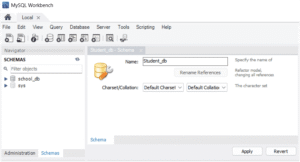
Step 3: After connecting successfully, locate the Schemas panel on the left side of the Workbench window. The Schemas panel contains the list of all databases available on the MySQL server.
Step 4: Locate the database that you want to drop from the MySQL server.
student_db
Step 5: Right-click on the database name. A shortcut menu will appear on the screen.
Step 6: Click “Drop Schema…” from the menu. Select the option below.
Step 7: MySQL Workbench displays a confirmation window with the SQL statement.
DROP DATABASE 'student_db';
Step 8: Click the Drop Now button to drop the database named student_db. MySQL permanently deletes the selected database along with all tables, records, views, triggers, stored procedures, functions, and other database objects stored inside it.
Step 9: To verify the database is deleted or not, check the Schemas panel again. If the database name no longer appears on the panel, the database has been dropped successfully. You can also click the refresh icon to update the database list.