Introduction
In this tutorial, we will learn how to write a simple Java program to accept and display employee details (information).
Imagine a company that needs a basic Employee Management System to digitize its staff records. We will build a program that captures essential employee details using the Scanner class and displays formatted employee details on the console.
Learning Objectives
After completing this program, you will practice the following:
- Declare variables using appropriate data types.
- Select the correct data type for different kinds of information.
- Store user input inside variables.
- Read user input (values) using the Scanner class.
- Display stored values in proper format on the console.
- Understand how variables hold data in memory.
- Follow Java naming conventions.
- Proper usage and cleanup of standard input streams.
Problem Statement
Write a Java program that prompts the user to enter various employee details, stores them in appropriate local variables, and displays the complete profile on the console.
Prerequisites
Before starting this program, you should be familiar with:
- Basic Java program structure
- Variables
- Primitive data types
- String class
- Scanner class
- System.out.println() method
Difficulty Level: Easy
Input Format
The program should accept the following input from the keyboard.
Employee ID
Employee Name
Age
Gender
Department
Job Title
Basic Salary
Years of Experience
Permanent Employee (true/false)
Output Format
Display all employee information in a neatly formatted report on the console.
Required Fields and Java Data Types
| Field Name | Variable Name | Recommended Data Type | Example Value |
| Employee ID | employeeId | int | 1001 |
| Employee Name | name | String | "John Doe" |
| Age | age | int | 28 |
| Gender | gender | char | 'M' / 'F' |
| Department | department | String | "Software Engineering" |
| Job Title | jobTitle | String | "Backend Developer" |
| Basic Salary | salary | double | 75000.50 |
| Years of Experience | experience | double | 4.5 |
| Permanent Employee | isPermanent | boolean | true / false |
Expected Solution Approach
To solve this problem, you follow a sequential step-by-step solution approach using Java’s built-in Scanner class for input and basic formatting for output:
Step 1: Import Required Package
Import java.util.Scanner to enable reading keyboard input from the console.
Step 2: Create Main Class & Method
Define the entry point of the application using public static void main(String[] args).
Step 3: Initialize Input Stream
Instantiate a Scanner object linked to standard system input (Scanner scanner = new Scanner(System.in)).
Step 4: Prompt and Accept User Inputs
Read each required field using the appropriate Scanner method:
| Input | Scanner Method | Data Type |
|---|---|---|
| Employee ID | scanner.nextInt() | int |
| Clear input buffer | scanner.nextLine() | — |
| Name | scanner.nextLine() | String |
| Age | scanner.nextInt() | int |
| Gender | scanner.next().charAt(0) | char |
| Clear input buffer | scanner.nextLine() | — |
| Department | scanner.nextLine() | String |
| Job Title | scanner.nextLine() | String |
| Basic Salary | scanner.nextDouble() | double |
| Years of Experience | scanner.nextDouble() | double |
| Permanent Flag | scanner.nextBoolean() | boolean |
Step 5: Store Data in Variables
Hold all input values in memory using descriptive, camelCase variables (employeeId, salary, isPermanent, etc.).
Step 6: Format and Display Output
Print a clean profile summary using System.out.println() statements concatenated with string labels.
Step 7: Release System Resources
Close the input stream with scanner.close() to prevent memory leaks.
Complete Java Program
import java.util.Scanner;

/**
 * Simple Employee Information System in Java.
 * Demonstrates console input/output and data type usage.
 */
public class EmployeeDetails {

    public static void main(String[] args) {
        // Create Scanner object to accept input from console
        Scanner scanner = new Scanner(System.in);

        System.out.println("=== ENTER EMPLOYEE DETAILS ===");

        // 1. Employee ID
        System.out.print("Enter Employee ID: ");
        int employeeId = scanner.nextInt();
        scanner.nextLine(); // Clear input buffer

        // 2. Employee Name
        System.out.print("Enter Employee Name: ");
        String name = scanner.nextLine();

        // 3. Age
        System.out.print("Enter Age: ");
        int age = scanner.nextInt();

        // 4. Gender (Single Character: 'M', 'F', 'O')
        System.out.print("Enter Gender (M/F/O): ");
        char gender = scanner.next().charAt(0);
        scanner.nextLine(); // Clear input buffer

        // 5. Department
        System.out.print("Enter Department: ");
        String department = scanner.nextLine();

        // 6. Job Title
        System.out.print("Enter Job Title: ");
        String jobTitle = scanner.nextLine();

        // 7. Basic Salary
        System.out.print("Enter Basic Salary: ");
        double salary = scanner.nextDouble();

        // 8. Years of Experience
        System.out.print("Enter Years of Experience: ");
        double experience = scanner.nextDouble();

        // 9. Is Permanent Employee
        System.out.print("Is Permanent Employee (true/false): ");
        boolean isPermanent = scanner.nextBoolean();

        // Displaying stored details
        System.out.println("\n==================================");
        System.out.println("       EMPLOYEE INFORMATION       ");
        System.out.println("==================================");
        System.out.println("ID                   : " + employeeId);
        System.out.println("Name                 : " + name);
        System.out.println("Age                  : " + age);
        System.out.println("Gender               : " + gender);
        System.out.println("Department           : " + department);
        System.out.println("Job Title            : " + jobTitle);
        System.out.println("Basic Salary         : $" + salary);
        System.out.println("Years of Experience  : " + experience + " years");
        System.out.println("Permanent Employee   : " + (isPermanent ? "Yes" : "No"));
        System.out.println("==================================");

        // Close scanner resource
        scanner.close();
    }
}
Expected Output:
=== ENTER EMPLOYEE DETAILS ===
Enter Employee ID: 1001
Enter Employee Name: John Doe
Enter Age: 28
Enter Gender (M/F/O): M
Enter Department: Software Engineering
Enter Job Title: Backend Developer
Enter Basic Salary: 75000.50
Enter Years of Experience: 4.5
Is Permanent Employee (true/false): true

==================================
       EMPLOYEE INFORMATION
==================================
ID                   : 1001
Name                 : John Doe
Age                  : 28
Gender               : M
Department           : Software Engineering
Job Title            : Backend Developer
Basic Salary         : $75000.5
Years of Experience  : 4.5 years
Permanent Employee   : Yes
==================================
Step-by-Step Code Explanation
1. Importing the Scanner Class
import java.util.Scanner;
- What it does: Imports the built-in Scanner utility class from Java’s java.util package.
- Why it’s needed: By default, basic Java doesn’t know how to read user input from the keyboard. The Scanner class gives us methods to capture text, numbers, and characters from the console.
2. Defining the Class and Main Method
public class EmployeeDetails {
public static void main(String[] args) {
- Class Declaration: Every line of code in Java must sit inside a class. We named our class EmployeeDetails (matching the filename EmployeeDetails.java).
- Main Method: The public static void main(String[] args) method is the starting point (entry point) of any standalone Java application. Execution of the program begins here.
3. Initializing the Input Reader
Scanner scanner = new Scanner(System.in);
- System.in: Refers to Java’s standard input stream, which normally receives input from the keyboard when the program runs in a terminal/console.
- new Scanner(System.in): Creates a Scanner object that reads and processes data from System.in.
- scanner: A reference variable that refers to the Scanner object.
4. Reading Inputs and Storing Data
A. Integer Input (Employee ID & Age)
System.out.print("Enter Employee ID: ");
int employeeId = scanner.nextInt();- scanner.nextInt(): Reads the next whole number typed by the user and assigns it to an integer variable (int).
B. Clearing the Scanner Buffer (Crucial Step!)
scanner.nextLine(); // Clear input buffer
- The Pitfall: When a user types 1001 and presses Enter, nextInt() reads 1001 but leaves the hidden newline character (\n) floating in the input stream.
- The Fix: Calling scanner.nextLine() right after nextInt() clears out that remaining newline character so our next text prompt doesn’t get skipped!
C. String Input (Name, Department, Job Title)
System.out.print("Enter Employee Name: ");
String name = scanner.nextLine();
- scanner.nextLine(): Reads a full line of text (including spaces) until the user presses Enter.
D. Character Input (Gender)
System.out.print("Enter Gender (M/F/O): ");
char gender = scanner.next().charAt(0);
scanner.nextLine(); // Clear input buffer
- scanner.next(): Reads the word typed as a String.
- .charAt(0): Extracts the very first letter of that string (at index 0), storing it in a primitive char variable.
E. Decimal Input (Salary & Experience)
System.out.print("Enter Basic Salary: ");
double salary = scanner.nextDouble();

System.out.print("Enter Years of Experience: ");
double experience = scanner.nextDouble();- scanner.nextDouble(): Captures numbers with decimal places (floating-point numbers) like 75000.50 or 4.5.
F. Boolean Input (Employment Status)
System.out.print("Is Permanent Employee (true/false): ");
boolean isPermanent = scanner.nextBoolean();- scanner.nextBoolean(): Parses logical true or false inputs and stores them in a boolean variable.
5. Formatting and Displaying the Profile
System.out.println("ID : " + employeeId);
System.out.println("Permanent Employee : " + (isPermanent ? "Yes" : "No"));
- String Concatenation (+): Joins literal label strings (e.g., “ID : “) with the actual value stored in variables.
- Ternary Operator (? 🙂: (isPermanent ? “Yes” : “No”) evaluates the boolean variable. If isPermanent is true, it prints “Yes”; if false, it prints “No”.
6. Closing the Resource
scanner.close();
- Why it matters: Standard input streams consume system resources. Closing the scanner when done prevents potential memory leaks in desktop and server applications.
Memory Visual Diagram
1. Local Primitives on Stack Frame
In Java, local primitive variables are typically stored in the current method’s stack frame, with their values stored directly. Primitive variables (int, double, char, boolean, etc.) declared inside a method exist only for the execution duration of that stack frame.
In other words, variables declared inside a method (like our primitives) live only as long as that method is running. They live in a stack frame.
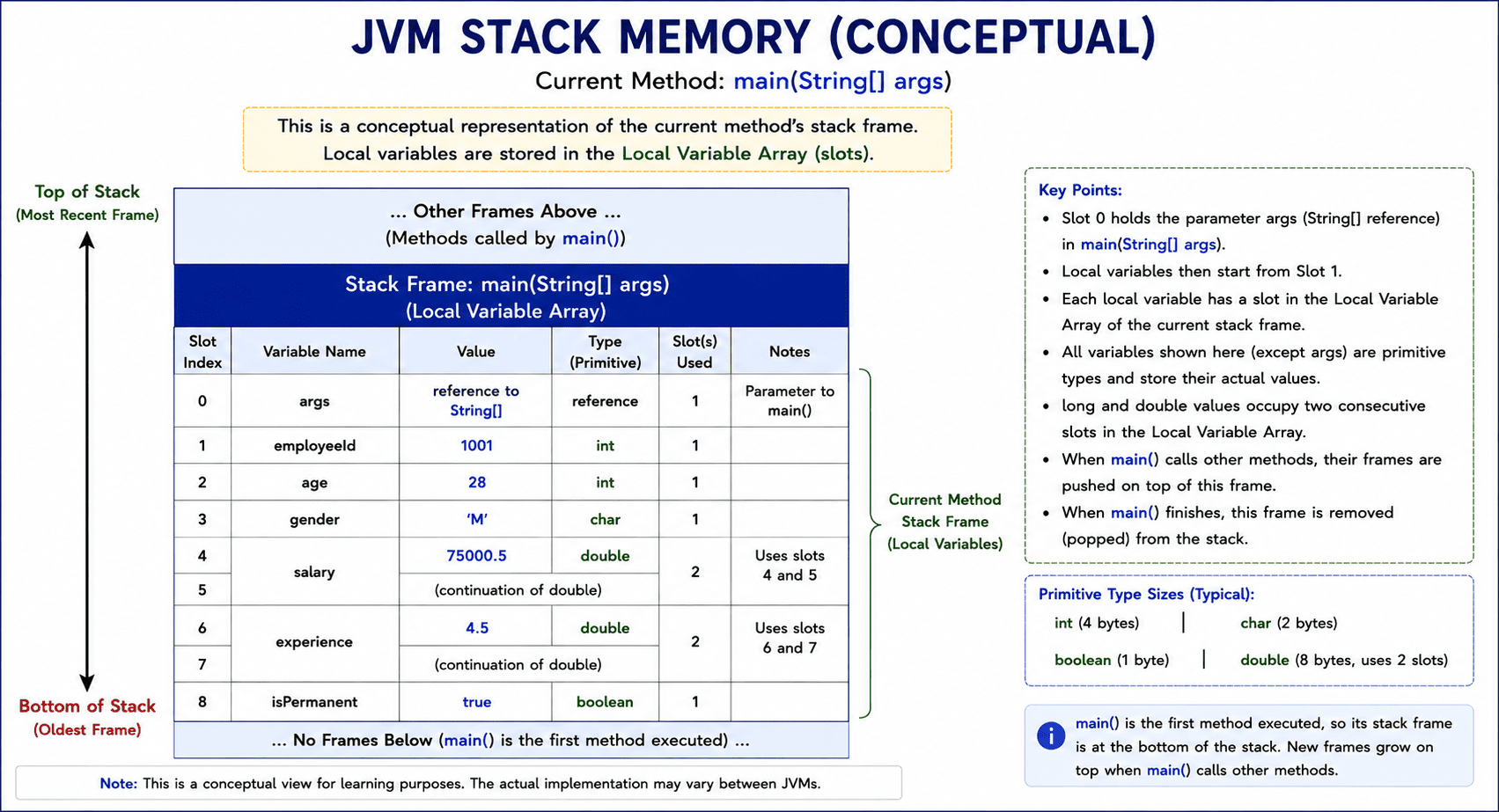
Imagine the main() method is like a small cabinet that opens up when your program starts. Every variable gets its own drawer (or slot).
2. Reference Variables & Heap Memory
A reference variable such as String name stores a reference to a String object, which is stored in heap memory. A local reference variable stored in a local-variable slot of the current method’s stack frame holds a memory address (pointer). This pointer directs the JVM to the actual object instance allocated in heap memory.
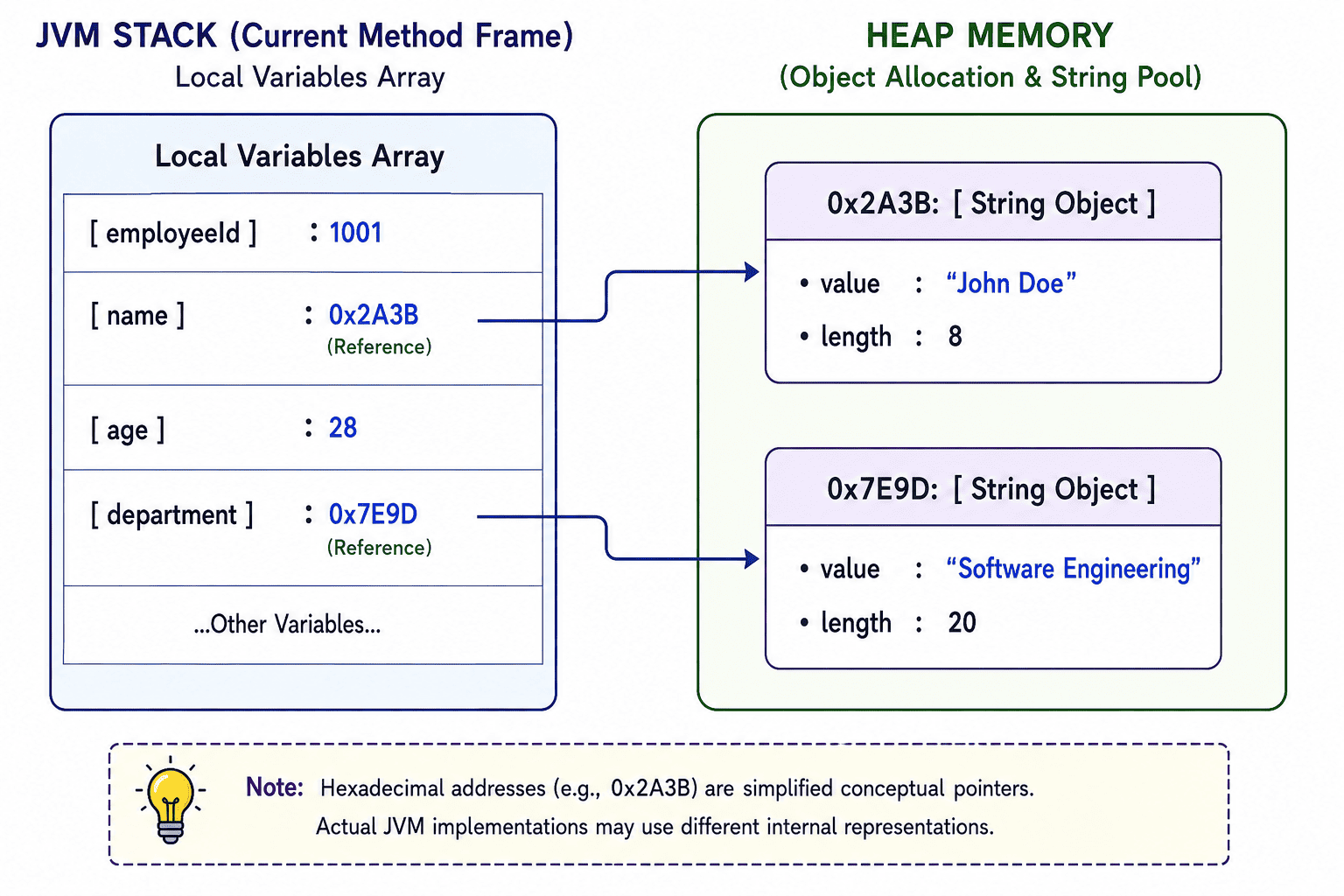
3. String Literals and String Pool
When you create a String literal such as “John Doe”, Java stores and manages that literal in the String Pool. If you create the same String literal again, such as “John Doe”, Java can reuse the same String object from the String Pool instead of creating another identical String object. This helps avoid unnecessary duplicate String objects and can save memory.
Follow-up Challenge
Modify the program by adding these new fields while still staying within the Variables & Data Types topic:
- Employee Email (String)
- Mobile Number (String)
- Blood Group (String)
- Nationality (String)
- Marital Status (boolean)
- Monthly Bonus (double)
- Office Floor (byte)
- Number of Projects (short)
- Employee Grade (char)
Do not perform any calculations or use conditional statements. Simply read the values, store them in appropriately typed variables, and display them in a formatted report.